Most of what lands in a clipboard is disposable. You copy a link, paste it, forget it. Every now and then one of those items is worth keeping longer than an hour, and the clipboard manager is the wrong place for it. That gap is why ClipSafe Notes exists.
It is a separate Windows app, not a panel inside ClipSafe. Notes has its own folders, its own window size, its own settings and its own release cycle. Building it into the clipboard manager would have meant a second kind of storage inside an app whose whole job is to be quick and get out of the way.
ClipSafe Notes is free, like ClipSafe, and it is on the Microsoft Store.
Every note is a file
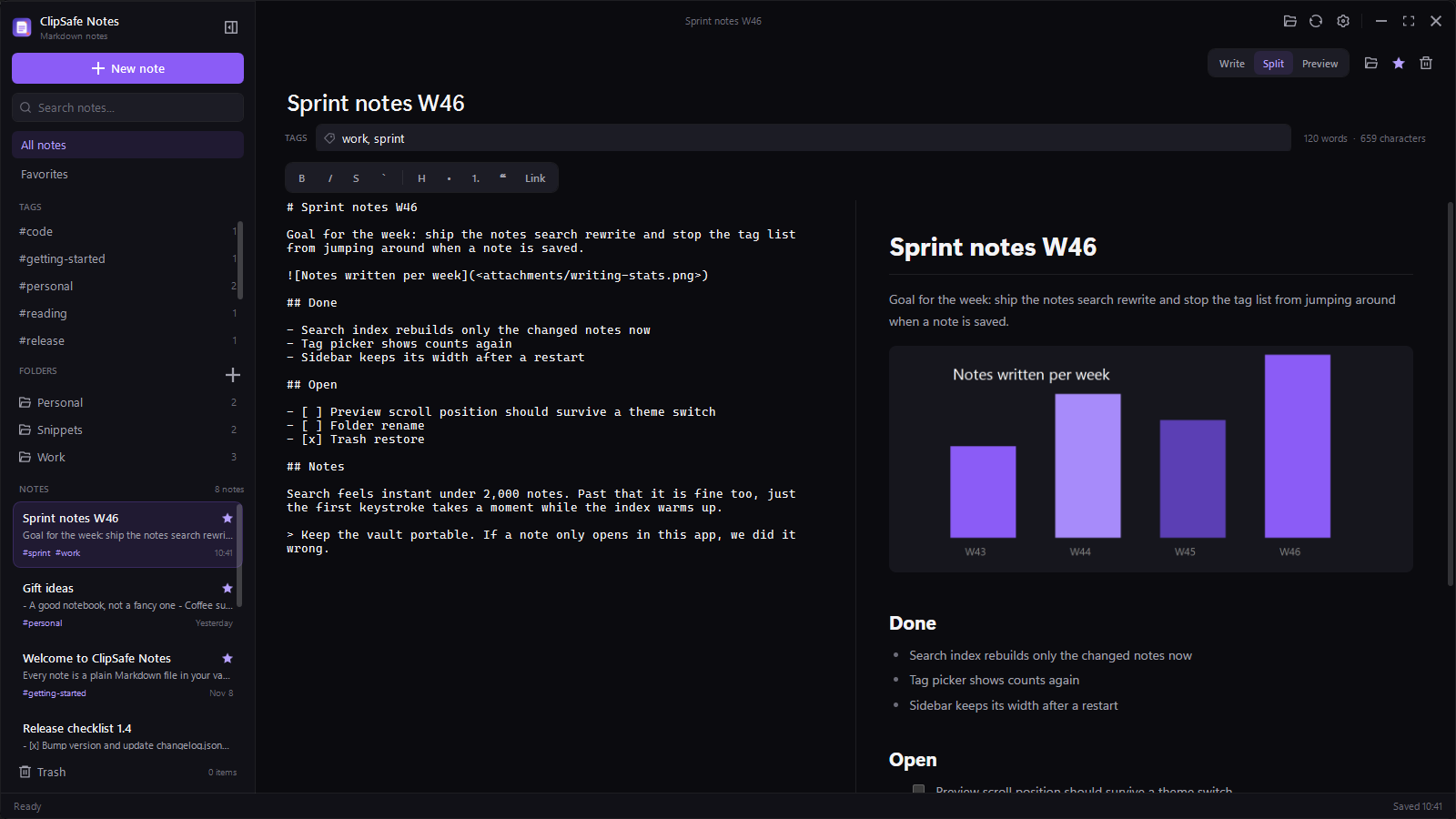
The vault is a folder. Every note is one .md file with a small header that looks like this:
---
title: "Sprint notes W46"
tags: work, sprint
favorite: true
created: 2026-10-28T09:00:00.0000000+01:00
updated: 2026-11-12T10:41:00.0000000+01:00
---

# Sprint notes W46

Goal for the week: ship the notes search rewrite.
That header is the reason tags and favorites survive a reinstall. They are not rows in a hidden database, they are text at the top of the file. Delete the app, keep the folder, and every note still opens in Obsidian, VS Code, Typora or Notepad, tags and all.
The only thing the app owns is the index. It is a SQLite database in %LOCALAPPDATA%\ClipSafe Notes with an FTS5 table for full text search. Delete it and the app rebuilds it from the Markdown files on the next launch. Nothing in the index is unique, which is the whole point of keeping it separate.
Search that runs at typing speed
Search covers titles, tags and the body of every note, and it filters while you type. The index updates when a note is saved instead of rebuilding the world, so a vault with a few thousand notes stays usable. Folders and tags narrow the same list, and they combine with whatever is in the search box.
Folders are real folders in the vault, not labels in a database. Create one in the sidebar and it exists on disk. Move a note into it and the file moves. If you would rather organize in Explorer, that works too, because the sidebar is just a view of the folder.
Writing without memorising Markdown
The formatting bar covers the parts of Markdown most people actually use: bold, italic, strikethrough, inline code, headings, lists, quotes and links. Select a line, click a button, and the Markdown characters appear around it. The selection collapses afterwards, which is what you want, because the characters you selected are now part of a longer string.
Preview renders headings, lists, tables, task lists, code blocks, quotes and images. Images can be relative to the vault or anywhere on the PC, and a pasted screenshot or a dropped file is copied into the vault attachments folder so the note keeps working if the original moves.
Write, split and preview are one button apart, or Ctrl+E. The theme follows Windows unless you pin dark or light in settings.
Deleting without losing
Deleting a note moves the file to a .trash folder inside the vault. The Trash view lists what is in there with the date it was removed, and gives you two buttons: restore, or delete permanently. Restoring puts the file back with a unique name if something already took its old one.
That is the whole safety net. There is no background version history, no snapshot store and no recycle bin inside a database. The files are small and plain, so if you want history, put the vault under Git and commit when it matters.
The ClipSafe half
Notes sends text to ClipSafe over the same local named pipe the VS Code extension uses. Select a few lines in the editor and press Ctrl+Shift+Alt+S to send just those lines, tags included. Press it with nothing selected to send the whole note.
The app checks whether ClipSafe is installed before showing the button, and it reports the difference between "not installed" and "installed but not running". A send that silently fails is worse than a send that refuses, so the status line is honest about it.
There is no reverse direction yet. Notes cannot pull an item out of clipboard history, because the ClipSafe pipe is write-only by design. That was a deliberate choice on the clipboard side and it stays that way.
What Notes does not do
No sync. No mobile app. No plugins, no theme marketplace, no AI assistant reading your notes. There is no account because there is nothing to log into.
If you need the same notes on three devices, put the vault inside a folder your file sync already covers. That works, because the vault is just files. It also means the sync provider sees the notes, which is a trade-off only you can decide on. The app itself will not do it for you.
There is also no WYSIWYG-only mode. You can write in preview or split, but the file is Markdown and the app will not hide that from you.
Who it is for
People who already keep text files and wish they had a nicer window for them. People who tried a big notes app, liked the editor, and did not like the account, the sync service or the export folder full of JSON. People who use ClipSafe, and want somewhere to paste the thing they just copied without opening a browser tab.
If you need real-time collaboration, databases inside notes, or a web clipper, this is not that app, and it is not trying to be.
Try it
Install it from the Microsoft Store, and the first launch creates the vault with a short welcome note that lists the shortcuts. The Notes page covers the features in more detail, and the privacy policy explains what ClipSafe stores locally and what it never sends.